

·6 min read
How to Generate Images and Videos in Claude, Codex, and Cursor with Tokatlas MCP
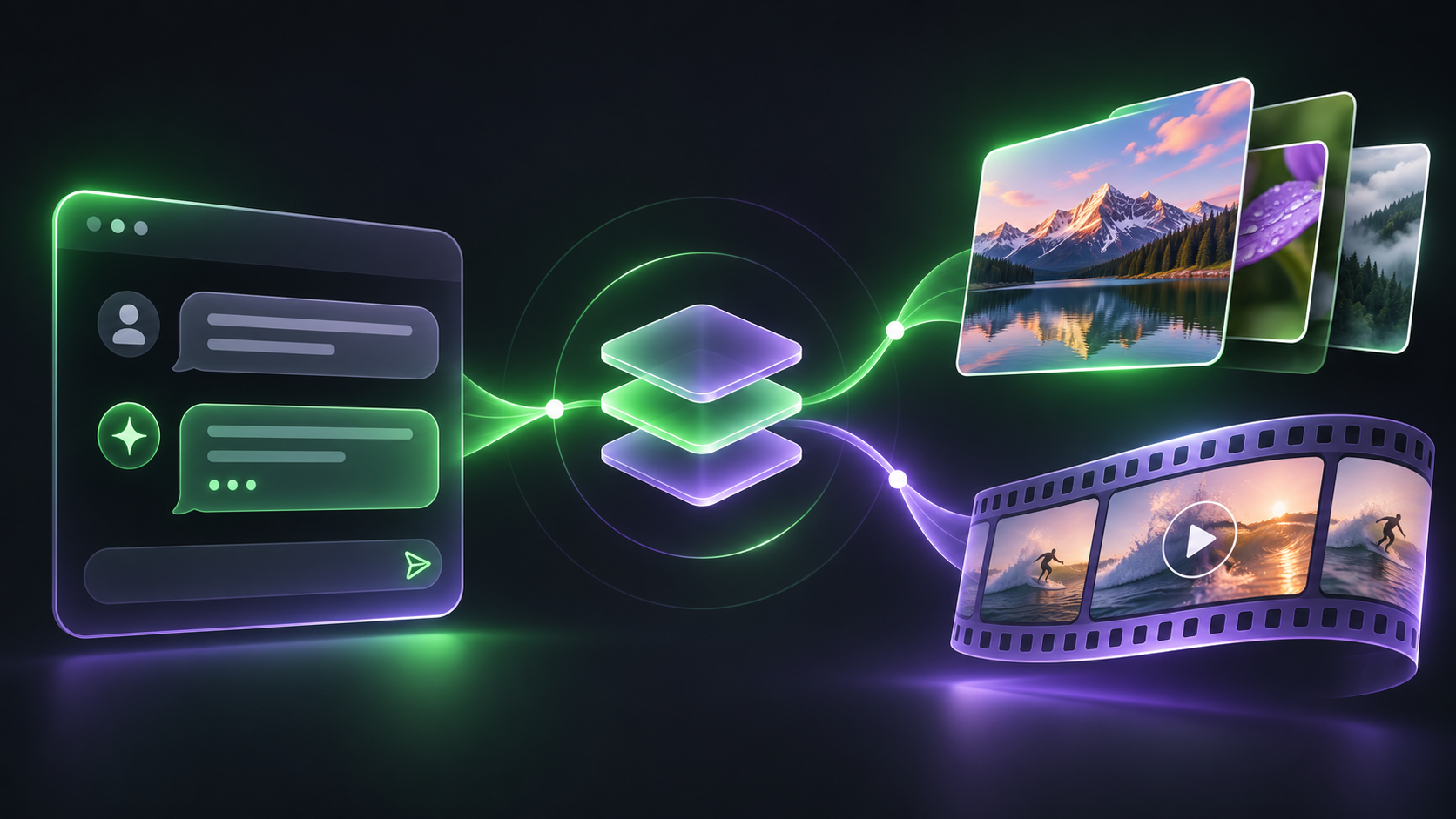
Tokatlas MCP lets you generate images and videos, iterate on reference photos, and continue multi-shot creative projects directly inside the AI assistant you already use. Instead of managing separate subscriptions or copying assets back and forth, you connect your Tokatlas account once over remote MCP (https://mcp.tokatlas.com/mcp) using browser sign-in, then move smoothly between chat and the Tokatlas project workspace.
Who Tokatlas MCP is for
Tokatlas MCP is designed for two overlapping workflows:
- Creators, designers, and e-commerce teams who want to draft product posters, test visual variations from a reference photo, or build short video clips inside Claude or a desktop assistant, then open the project canvas for precise layout or clip adjustments.
- Developers and technical builders using Codex, Claude Code, or Cursor who want a hosted remote MCP endpoint with browser OAuth authorization, asynchronous task status checks, and persistent asset history without maintaining local credentials or custom media pipelines.
Currently supported assistants listed on the Tokatlas MCP setup page include Claude (web and desktop), Codex, Claude Code, Cursor, Doubao Work, and WorkBuddy.
How to connect Tokatlas MCP
Tokatlas MCP runs as a remote MCP server at https://mcp.tokatlas.com/mcp and authorizes through browser sign-in rather than asking you to paste long-lived account passwords into local config files.
Option 1: Visual connector setup (Claude Web / Desktop)
- Open the Tokatlas MCP page and select Claude to view the connector instructions for your workspace.
- Add the Tokatlas connector in Claude and select Connect.
- Complete browser sign-in with your Tokatlas account, review the requested permissions, and choose Allow.
- Return to Claude and start a new chat if the tools do not appear immediately.
Note for team or enterprise Claude workspaces: an owner or administrator may need to add the connector at the workspace level before individual members can connect their Tokatlas accounts.
Option 2: CLI and IDE setup (Codex, Claude Code, Cursor)
For terminal and IDE workflows, copy the setup prompt or command directly from Tokatlas MCP. For example, in Codex you can register the remote server with:
codex mcp add tokatlas --url https://mcp.tokatlas.com/mcp
Then ask your assistant to guide you through browser authorization. In Claude Code, you can select the Tokatlas server under /mcp to initiate or re-trigger sign-in.
Step-by-step creative workflow: from one prompt to a finished project
1. Start with a single image or video
For a standalone poster, cover, or short clip, describe the subject, framing, lighting, and whether text should be omitted. For example:
- Product poster: Use Tokatlas to make a square poster of a clear perfume bottle on pale stone in soft sidelight. Leave out the text.
- Short video: Use Tokatlas to make a video of latte foam rising into a tiny castle, with warm cafe lighting. (See a public video example and public paper-cut image example created on Tokatlas.)
Single generations are saved automatically under Creations, where you can inspect, download, or later add them to a project.
2. Edit from a product photo or saved creation
You do not need to start from scratch on every turn. Tokatlas MCP supports three reference paths:
- Attached photo: Attach a product image in your assistant and state explicitly what must stay unchanged—for example, turning an attached product image into a portrait poster while preserving the product and logo and changing only the background.
- Existing creation: Ask the assistant to list recent Tokatlas creations, confirm the selected item by name or thumbnail, and request one focused change such as a cooler color tone.
- Project materials: Specify the project name and which character, product, or scene reference inside that project to reuse.
Before submitting a reference-based generation, ask your assistant to confirm which exact reference file or creation it is passing.
3. Move from single generations to an ongoing project and canvas
When you are producing a brand campaign or multi-shot video, switch from one-off generations to a named project:
- Ask your assistant to continue an existing project, confirm the last conversation and finished work, and proceed to the next shot.
- When a task requires multi-step creative planning, your everyday assistant can hand off to Tokatlas Agent inside the project.
- When you need fine-grained control over layout, node arrangement, shot order, or clip timing, open My projects to continue on the visual canvas and final cut workspace.
Billing, pricing, and practical limits
- How billing works: Tokatlas does not require a separate MCP-only subscription to connect. Usage is billed against your Tokatlas account according to the model, modality, and settings used. Check live model availability and rates in Models and pricing and review the Feature overview before running large batches.
- No guaranteed pixel-perfect preservation: Reference images guide generation, but they do not guarantee exact reproduction of logos, typography, or fine product details. Always inspect the output against your original asset before publishing.
- Estimates vs. final charges: Generation cost depends on the matched model, inputs, and parameters; actual charges are recorded in your account logs and may differ from initial estimates.
- Account isolation: If you connect and see an empty list, verify which Tokatlas account you authorized—new accounts start with an empty Creations list.
Checking async tasks and handling failures
Image and video tasks may run asynchronously. Follow these practices to avoid duplicate charges or lost outputs:
- Check progress in the same chat: Ask the assistant to check the status of the Tokatlas generation you just submitted instead of resubmitting the prompt.
- Recover work across chats: If you open a new thread, ask the assistant to find your recent Tokatlas creations, or specify the project name to retrieve project assets.
- Diagnose failed or stalled tasks: Ask the assistant to inspect the original task status and error message, and keep the task identifier before deciding whether to adjust the prompt or retry.
- Expired authorization link: Re-initiate sign-in from the same Tokatlas connection inside your assistant to generate a fresh OAuth link. To revoke access, remove the assistant under Connected assistants on the Tokatlas setup page or delete the connector in your assistant.
Frequently asked questions
Does Tokatlas MCP work with both images and videos?
Yes. Once connected, you can request individual images, reference-based photo edits, and short videos in chat, and organize multi-shot video clips inside a Tokatlas project.
Where are my MCP-generated files stored?
Standalone generations are saved automatically to Creations. Work created inside a named project is stored under that project's Project creations in My projects.
Can I switch from chat to a visual editor?
Yes. Use your AI assistant to draft, iterate, and sort shots, then open the matching project in My projects to inspect references on the canvas and adjust clips or exports.
How do I verify actual generation cost and output quality?
Open the finished asset in Creations or your project workspace to inspect visual accuracy at full resolution, and review your account usage logs for the recorded charge.